77-725 Online Exam

Word 2016 Core Document Creation, Collaboration and Communication

35 questions available ยท Page 1 of 4

View study plans
Question 1 Lab simulation

Simulation

Project 7 of 7: Coffee

Overview

You are preparing a flyer for use at a commercial foods trade show. You are editing the document in response to client requests.
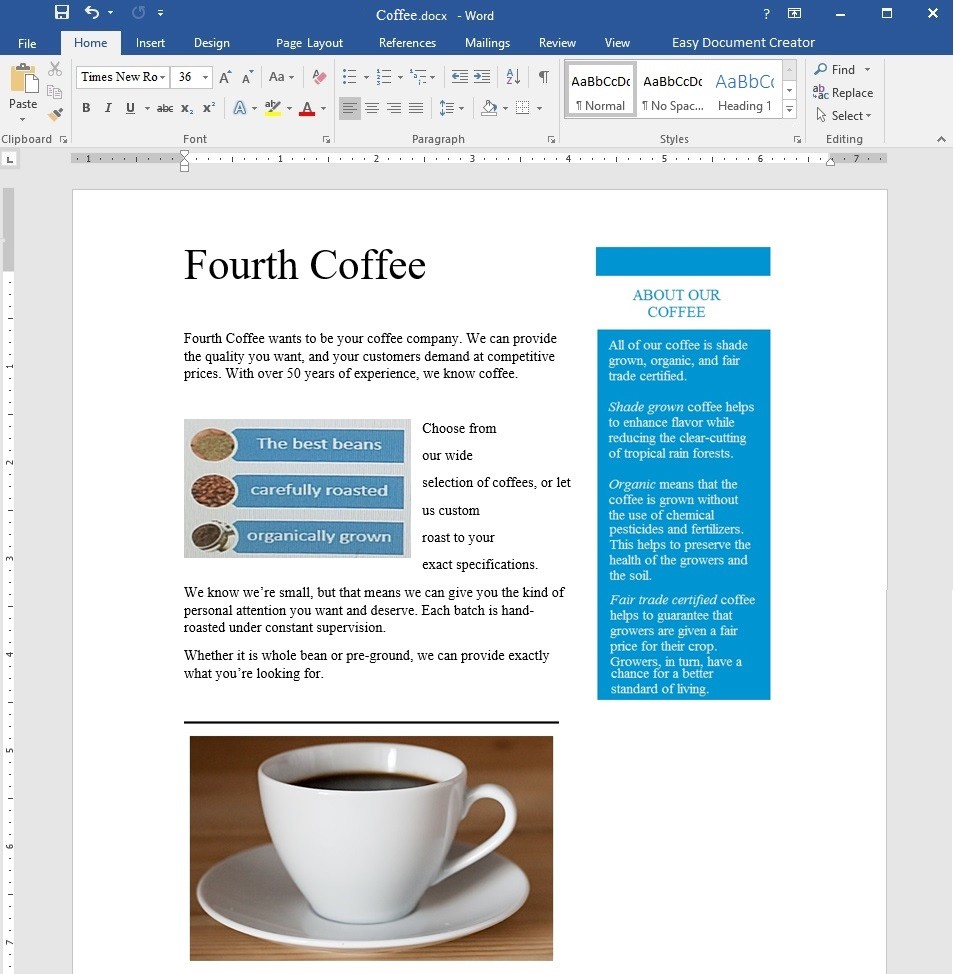
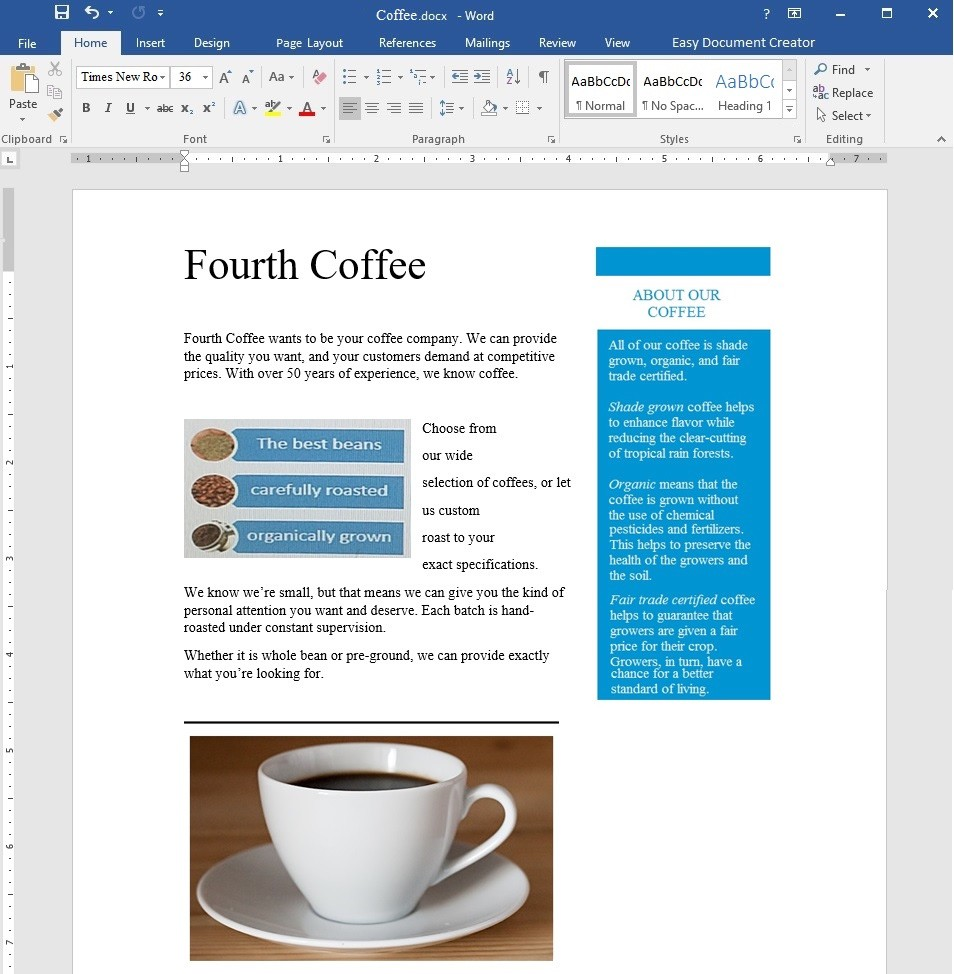
Rearrange the text in the SmartArt graphic so that "organically grown" is above "carefully roasted".

A. Correct Answer: See the explanation below.

Show answer and explanation

1. From the Design tab select Format.
2. Select the SmartArt graphics.
3. In the Text pane, drag the list item "organically grown" to be above "carefully roasted".

References:
https://www.microsoftpressstore.com/articles/article.aspx?p=2472176&seqNum=2
Question 2 Lab simulation

Simulation

Project 7 of 7: Coffee

Overview

You are preparing a flyer for use at a commercial foods trade show. You are editing the document in response to client requests.

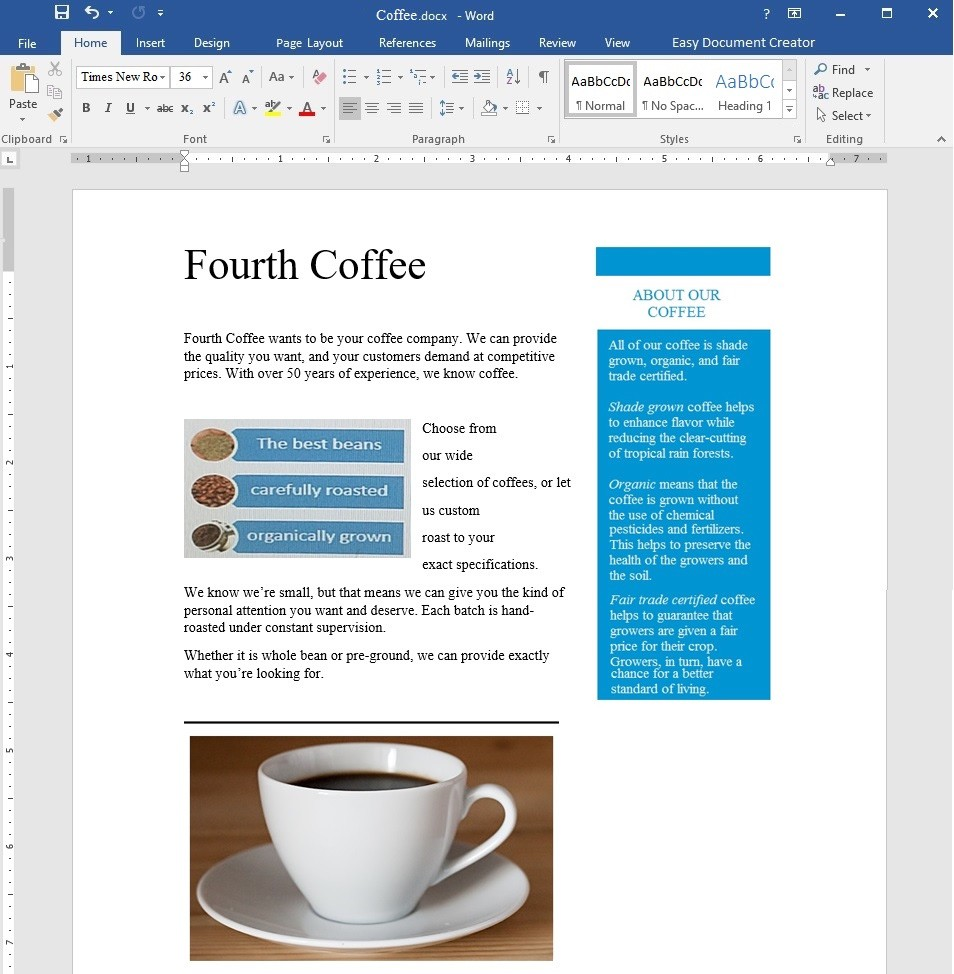
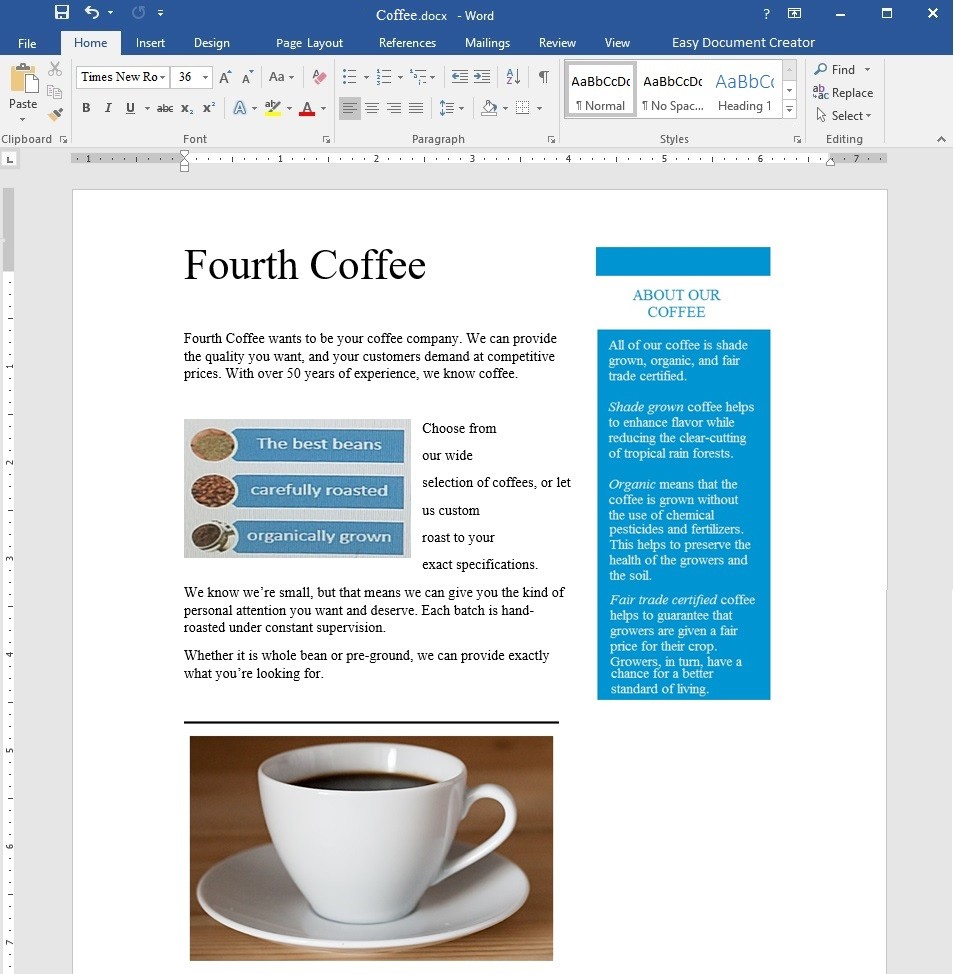
Add the image heartcup.jpg from the Pictures folder below the text in the sidebar.

A. Correct Answer: See the explanation below.

Show answer and explanation

1. Select the area you want the picture to be in, in this case, below the text in the sidebar.
2. Click Insert, then select Pictures.
3. Search for the heartcup.jpg in the Pictures folder, then select Insert.

References:
https://support.office.com/en-us/article/Insert-pictures-3C51EDF4-22E1-460A-B372-9329A8724344

Question 3 Lab simulation

Simulation

Project 7 of 7: Coffee

Overview

You are preparing a flyer for use at a commercial foods trade show. You are editing the document in response to client requests.

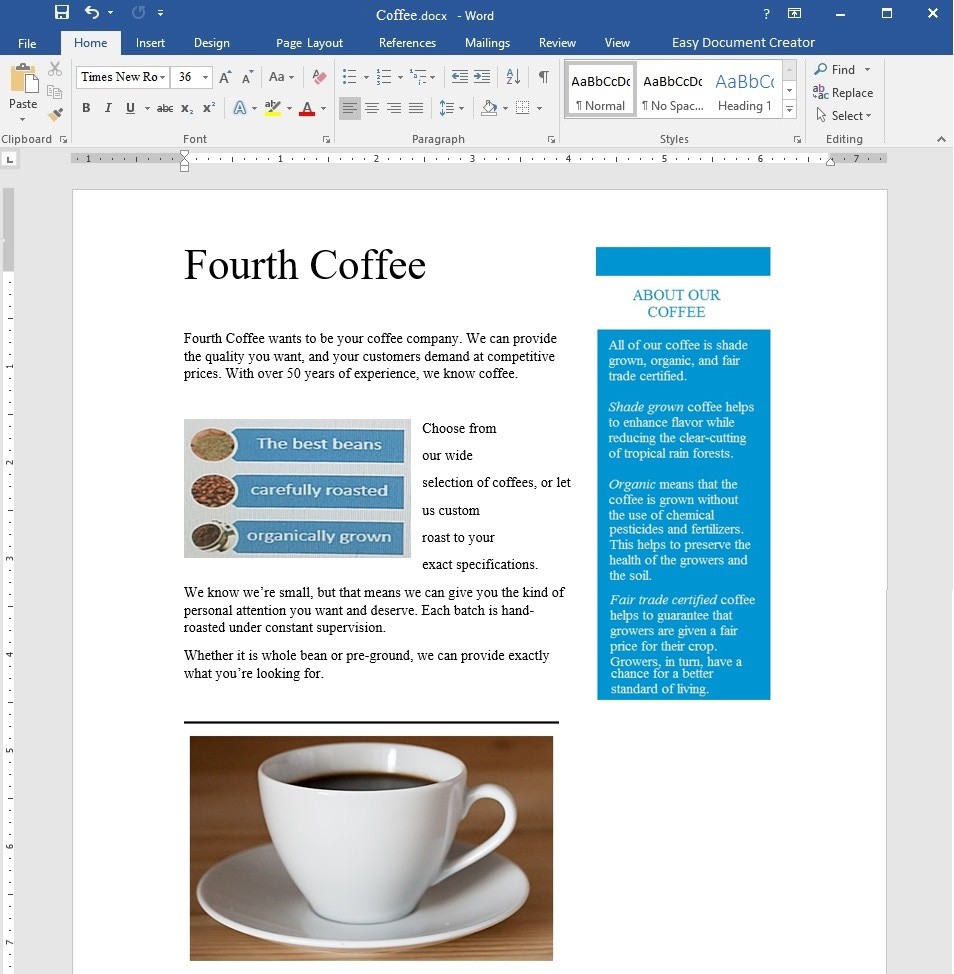
Move the image containing one coffee cup to just below the title "Fourth Coffee".

A. Correct Answer: See the explanation below.

Show answer and explanation

1. Drag the image of the coffee cup to the desired location.

OR

1. Select the image of the coffee cup.
2. Select the Layout Options icon, and choose the desired layout.

References:
https://support.office.com/en-us/article/Use-Word-Layout-Options-to-move-pictures-becff26a-d1b9-4b9d-80f8-7e214557ca9f

Question 4 Lab simulation

Simulation

Project 7 of 7: Coffee

Overview

You are preparing a flyer for use at a commercial foods trade show. You are editing the document in response to client requests.

Apply the Soft Round Bevel picture effect to the image of a coffee cup on a saucer.

A. Correct Answer: See the explanation below.

Show answer and explanation

1. Select the image of the coffee cup on a saucer which you want to add the effect to.
2. Click Picture Effects from the Picture Styles group in the Format tab under the Picture Tools.
3. Render the cursor over the Bevel option from the Picture Effects options, then select the Soft Round option.

References:
https://support.office.com/en-us/article/Add-or-change-an-effect-for-a-picture-D9F0F1F2-5227-450F-95B4-25FFDDDBD965

Question 5 Lab simulation

Simulation

Project 7 of 7: Coffee

Overview

You are preparing a flyer for use at a commercial foods trade show. You are editing the document in response to client requests.

Add the contents of the file contact.docx in the Documents folder below the horizontal line near the middle of the page.

A. Correct Answer: See the explanation below.

Show answer and explanation

1. Click below the horizontal line near the middle of the page where you want the contents added.
2. On the Insert tab, in the Text group, select the arrow next to Object, then select Text from File.
3. In the Insert File dialog box, locate the contact.docx file, then double-click it to add the contents to the current document.

References:
https://support.office.com/en-us/article/Insert-a-document-in-Word-274128e5-4da7-4cb8-b65f-3d8b585e03f1

Question 6 Lab simulation

Simulation

Project 6 of 7: Recall

Overview

You work in Customer Communications at Northwind Traders. You are preparing a product recall announcement.

We regret any inconvenience that this might cause you. Northwind Traders is dedicated to providing you with reliable, high-quality, and safe products. The product sticker on the bottom of the dehydrator can determine whether or not your dehydrator is included in the recall. For affected models, there is a slight risk that the product might overheat when used, resulting in a potential burn hazard.
DO NOT RETURN TO YOUR RETAILER. Go to the Northwind traders web site at http://www.northwindtraders.com/ and click on the "Product Recall" banner at the top of the page for return instructions. You will receive a full refund for the dehydrator and we will also ship you a replacement dehydrator.

REMINDER:

Add a bookmark named "Return" to the paragraph "DO NOT RETURN... replacement dehydrator."

A. Correct Answer: See the explanation below.

Show answer and explanation

1. Select the paragraph "DO NOT RETURN...replacement dehydrator." which is where you want to insert the bookmark.
2. Select Bookmark from the Insert tab.
3. Type "Return" under Bookmark name as desired, then click Add.

References:
https://support.office.com/en-us/article/Add-or-delete-bookmarks-in-a-Word-document-or-Outlook-message-f68d781f-0150-4583-a90e-a4009d99c2a0

Question 7 Lab simulation

Simulation

Project 6 of 7: Recall

Overview

You work in Customer Communications at Northwind Traders. You are preparing a product recall announcement.

We regret any inconvenience that this might cause you. Northwind Traders is dedicated to providing you with reliable, high-quality, and safe products. The product sticker on the bottom of the dehydrator can determine whether or not your dehydrator is included in the recall. For affected models, there is a slight risk that the product might overheat when used, resulting in a potential burn hazard.
DO NOT RETURN TO YOUR RETAILER. Go to the Northwind traders web site at http://www.northwindtraders.com/ and click on the "Product Recall" banner at the top of the page for return instructions. You will receive a full refund for the dehydrator and we will also ship you a replacement dehydrator.

REMINDER:

Add the Integral header with the title "PRODUCT ANNOUNCEMENT".

A. Correct Answer: See the explanation below.

Show answer and explanation

1. Click Header from the Insert tab.
2. Select Edit Header to create a header.
3. Type the title "PRODUCT ANNOUNCEMENT" in the [Text] box.
4. Click Close Header and Footer to complete task.

Question 8 Lab simulation

Simulation

Project 6 of 7: Recall

Overview

You work in Customer Communications at Northwind Traders. You are preparing a product recall announcement.

We regret any inconvenience that this might cause you. Northwind Traders is dedicated to providing you with reliable, high-quality, and safe products. The product sticker on the bottom of the dehydrator can determine whether or not your dehydrator is included in the recall. For affected models, there is a slight risk that the product might overheat when used, resulting in a potential burn hazard.
DO NOT RETURN TO YOUR RETAILER. Go to the Northwind traders web site at http://www.northwindtraders.com/ and click on the "Product Recall" banner at the top of the page for return instructions. You will receive a full refund for the dehydrator and we will also ship you a replacement dehydrator.

REMINDER:

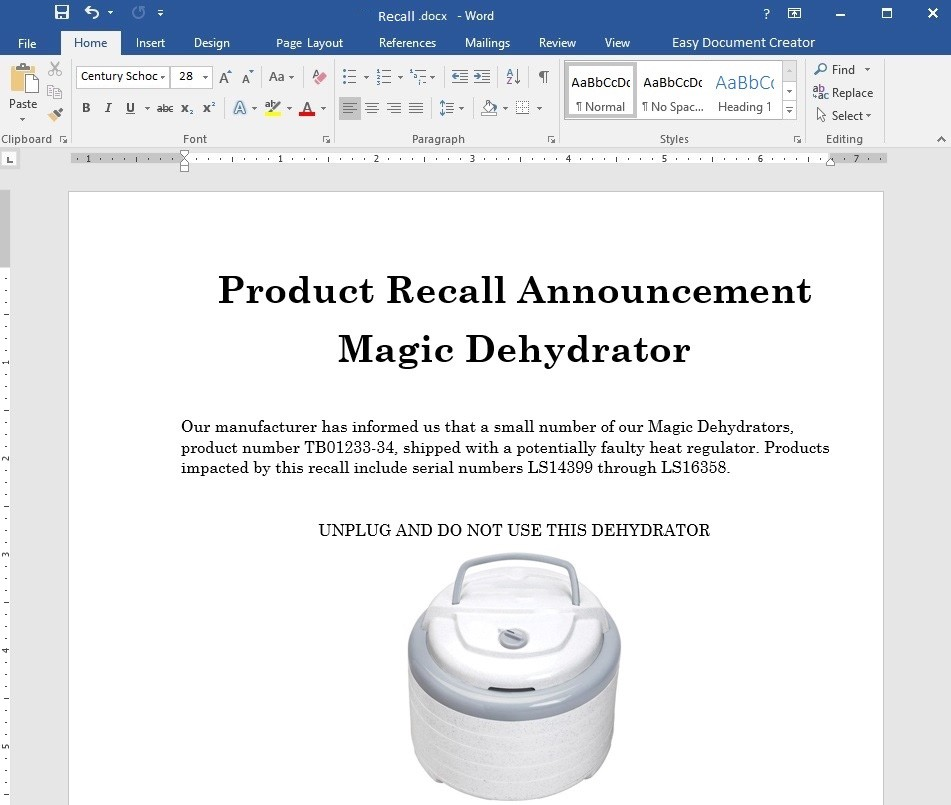
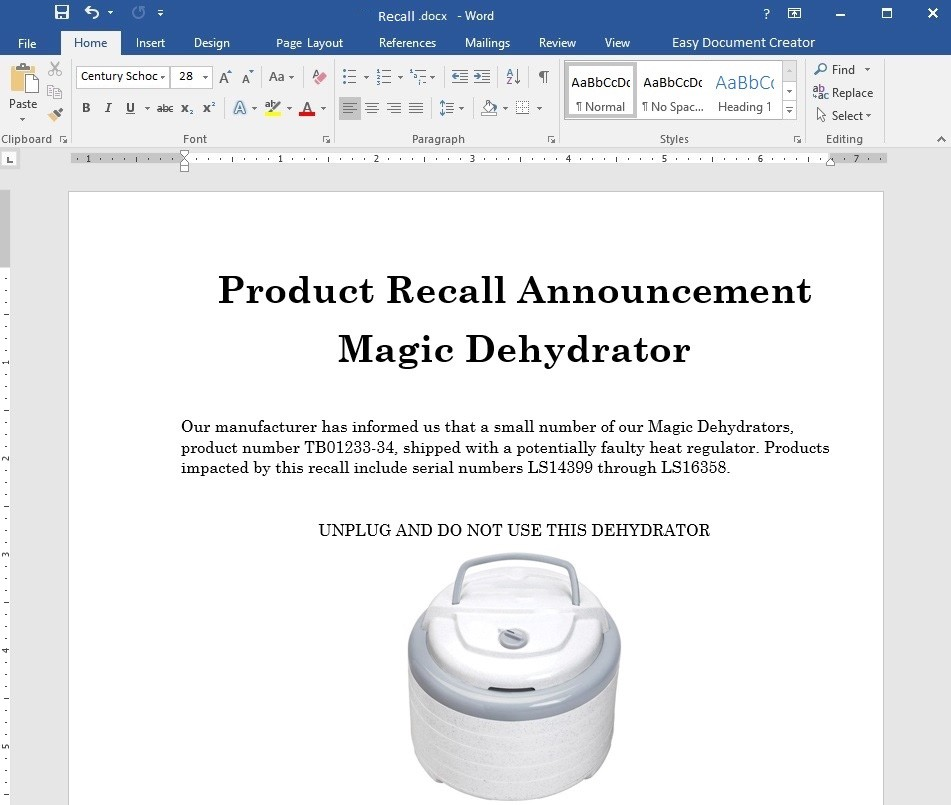
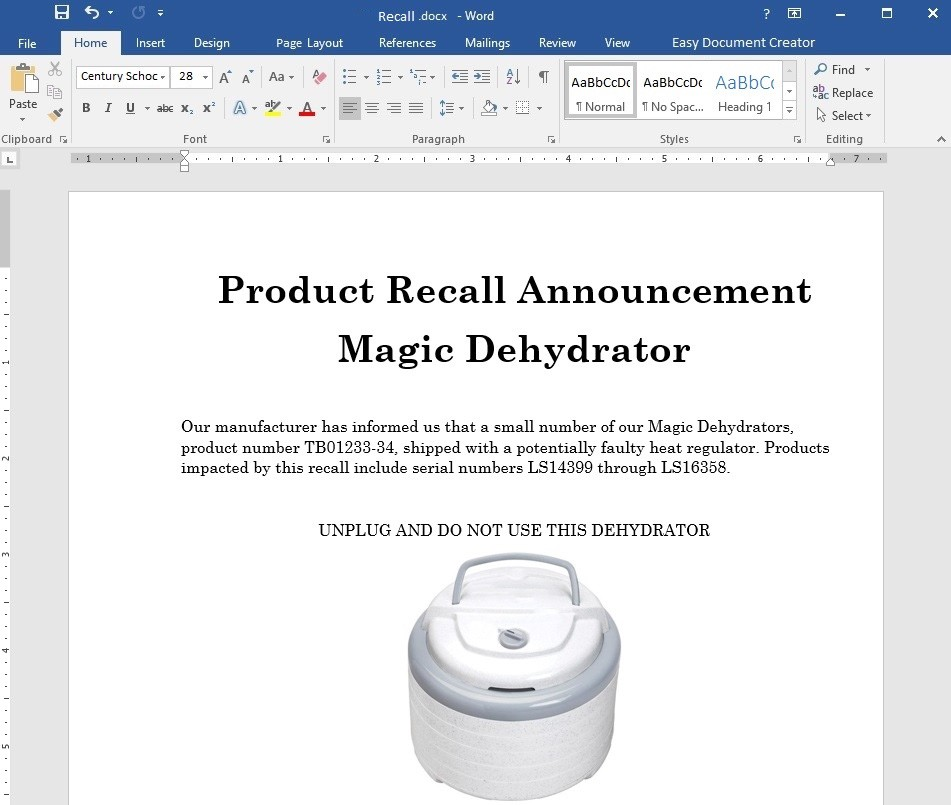
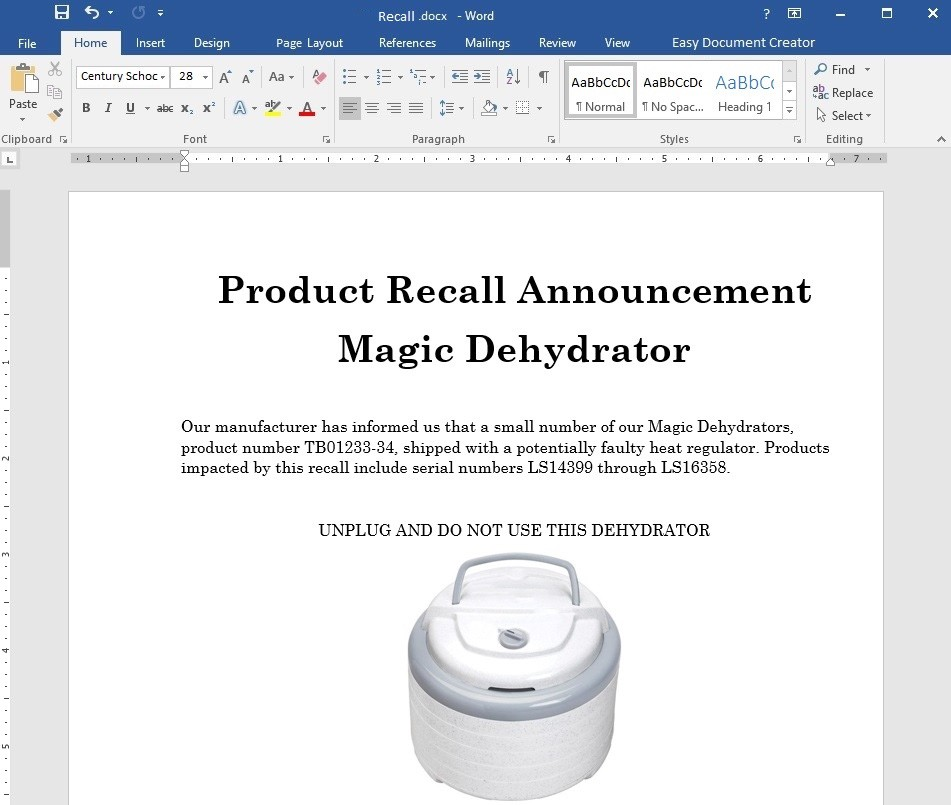
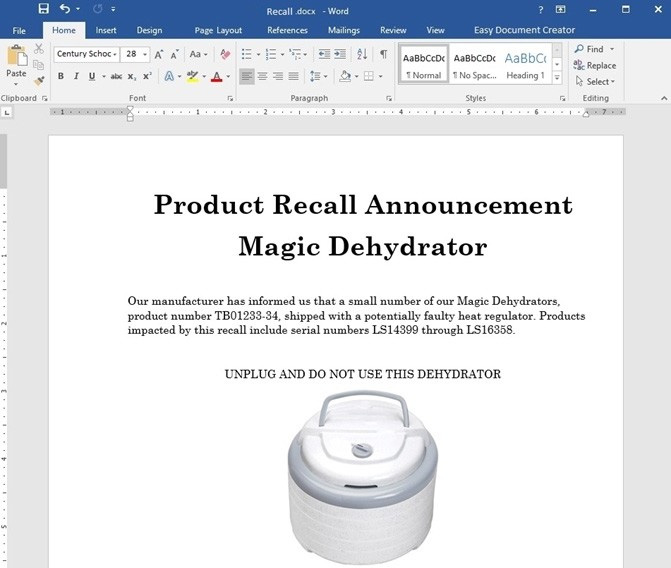
Apply the Intense Emphasis style to the text "UNPLUG AND DO NOT USE THIS DEHYDRATOR" that is
located above the image.

A. Correct Answer: See the explanation below.

Show answer and explanation

1. Select the text "UNPLUG AND DO NOT USE THIS DEHYDRATOR" located above the image.
2. Choose the Intense Emphasis style from the Home tab.

References:
https://support.office.com/en-us/article/Apply-styles-f8b96097-4d25-4fac-8200-6139c8093109

Question 9 Lab simulation

Simulation

Project 6 of 7: Recall

Overview

You work in Customer Communications at Northwind Traders. You are preparing a product recall announcement.

We regret any inconvenience that this might cause you. Northwind Traders is dedicated to providing you with reliable, high-quality, and safe products. The product sticker on the bottom of the dehydrator can determine whether or not your dehydrator is included in the recall. For affected models, there is a slight risk that the product might overheat when used, resulting in a potential burn hazard.
DO NOT RETURN TO YOUR RETAILER. Go to the Northwind traders web site at http://www.northwindtraders.com/ and click on the "Product Recall" banner at the top of the page for return instructions. You will receive a full refund for the dehydrator and we will also ship you a replacement dehydrator.

REMINDER:

Copy the text "UNPLUG AND DO NOT USE THIS DEHYDRATOR" and paste it after the text
"REMINDER:". The pasted text should be left-justified and bold.

A. Correct Answer: See the explanation below.

Show answer and explanation

1. Select the text "UNPLUG AND DO NOT USE THIS DEHYDRATOR" then right-click and select Copy.
2. Click after the text "REMINDER" then right-click and select Paste.

OR

1. Select the text "UNPLUG AND DO NOT USE THIS DEHYDRATOR" then press Ctrl+C.
2. Click after the text "REMINDER" then press Ctrl+V.
3. Select the pasted text and format the alignment to left-justified and the text to bold.

Question 10 Lab simulation

Simulation

Project 6 of 7: Recall

Overview

You work in Customer Communications at Northwind Traders. You are preparing a product recall announcement.

We regret any inconvenience that this might cause you. Northwind Traders is dedicated to providing you with reliable, high-quality, and safe products. The product sticker on the bottom of the dehydrator can determine whether or not your dehydrator is included in the recall. For affected models, there is a slight risk that the product might overheat when used, resulting in a potential burn hazard.

DO NOT RETURN TO YOUR RETAILER. Go to the Northwind traders web site at http://www.northwindtraders.com/ and click on the "Product Recall" banner at the top of the page for return instructions. You will receive a full refund for the dehydrator and we will also ship you a replacement dehydrator.

REMINDER:

Change the line spacing to 1.15 lines for the entire document.

A. Correct Answer: See the explanation below.

Show answer and explanation

1. Select Paragraph Spacing from the Design tab.
2. Select line spacing 1.15.

References:
https://support.office.com/en-us/article/Change-the-line-spacing-in-Word-1970e24a-441c-473d-918f-c6805237fbf4